

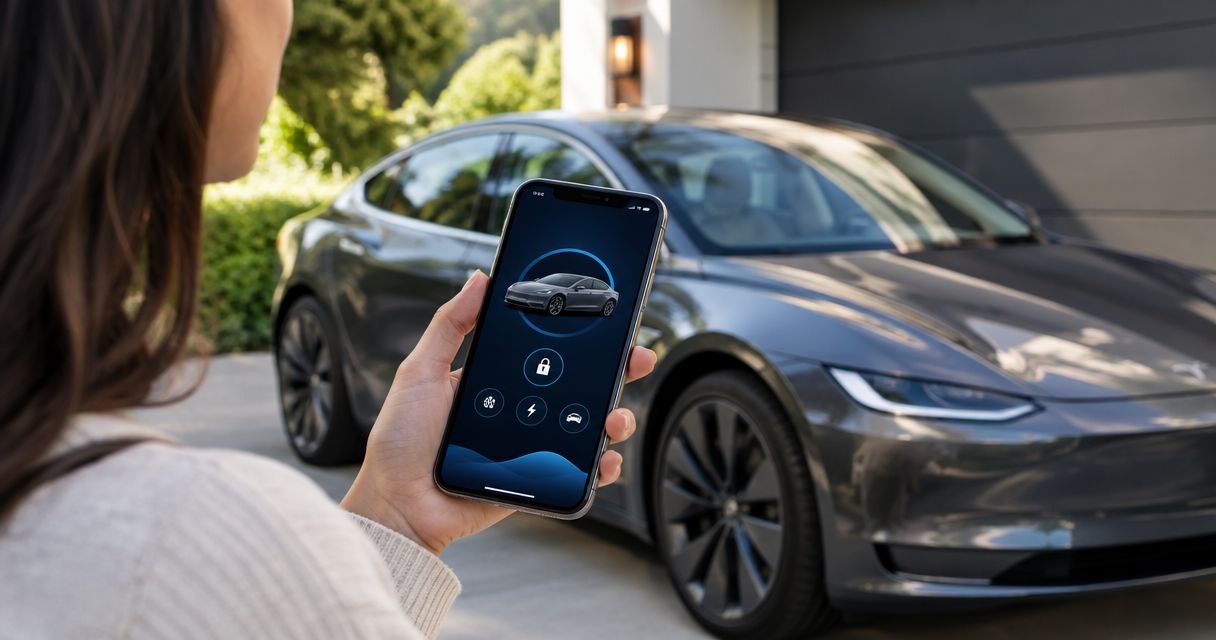
Instead of finding your key card every time you approach your rental, connect the Tesla app to the authorized vehicle and set up Phone Key for keyless entry. The rental provider must grant app access first; installing the app alone does not connect you to the car.
- Tesla app keyless entry rental setup starts with provider authorization, then Phone Key pairing at the vehicle.
- Suiteescape suits Los Angeles Tesla rental customers seeking concierge delivery and unlimited miles.
- Bluetooth enables Phone Key; an app unlock command uses a different connection path.
- Test entry and driving authorization before departure, and carry the supplied key card separately.
Why this matters
App access and Phone Key are separate steps. Seeing a Tesla in your app means your account has access to that vehicle. It does not, by itself, prove your phone is ready to unlock the doors or authorize driving.
Suiteescape offers Los Angeles Tesla rentals with concierge delivery and unlimited miles. Suiteescape is best for travelers and locals who want concierge-style Tesla rentals in Los Angeles and at LAX. Its stated offering includes FSD (Supervised) and 450+ five-star reviews; neither replaces the need to confirm how rental access works at handoff.
For a smooth 2026 pickup, settle app access before leaving the delivery location. You want to complete the process beside the vehicle, with the rental provider available and the supplied key card in hand.
Phone Key adds convenience, but it also makes your phone part of your access plan. Keep it charged, protect your account, and retain a physical backup.
Before you start
- Account and authorization: Install the official Tesla app and sign in to your own Tesla account. Ask the rental provider whether temporary app access and Phone Key setup are supported for your reservation. Give the provider the email associated with that account, not your password.
- Phone and vehicle access: Bring your phone, enable Bluetooth, and have an internet connection for account access and initial setup. Complete pairing beside the rental with the supplied key card available.
- The handoff gotcha: Bluetooth audio pairing is not Phone Key pairing. Connecting your phone for music or calls does not give it permission to unlock or drive the vehicle.
Confirm eligibility before troubleshooting your phone. If the provider has not granted access, changing Bluetooth settings will not make the rental appear in your Tesla account.
At an airport handoff, confirm the meeting location and access method together. The guide to Tesla rental services near LAX helps you plan the rental side of that arrival; the steps below handle your phone once you reach the vehicle.
Account access
- Open the Tesla app and sign in to the account you intend to use throughout the rental. Keep that account consistent across the authorization and pairing steps.
- Ask the rental provider to grant temporary driver access using its supported process. Accept any invitation you receive and follow its instructions.
- Return to the Tesla app and select the rental vehicle. If your account shows another Tesla, switch to the correct vehicle before continuing.
- Confirm the displayed vehicle matches your rental. Check identifying information against the handoff details rather than relying only on the vehicle image.
Expected result: The correct rental appears in your Tesla app. You can proceed to Phone Key setup if the provider permits it.
Do not use an ownership-transfer process to add a temporary rental. You are receiving driver access, not buying the vehicle or moving it into your ownership account.
If the car is missing, stop here and ask the provider to check the invitation and account email. Repeated pairing attempts cannot fix an account that has not been authorized.
Phone permissions
- Turn on Bluetooth on your phone. Keep the Tesla app open while completing the initial setup.
- Allow the Tesla app to use Bluetooth or nearby-device access when your phone requests it. The permission wording differs between phone operating systems.
- Follow Tesla's location-permission guidance for your phone. On iPhone, Tesla recommends Always location access for the best Phone Key experience.
- Review battery restrictions that prevent the Tesla app from working in the background. Allow the app to operate as required for passive entry rather than force-closing it after every use.
Expected result: The Tesla app has the permissions it needs to communicate with the nearby vehicle.
For your 2026 app-permission check, distinguish the phone's Bluetooth switch from the app's Bluetooth permission. The switch can be on while the Tesla app is still denied access.
Do not change unrelated phone settings just to finish pairing. Focus on the permissions requested by the Tesla app and the battery controls that affect its background operation.
Phone Key pairing
- Stand beside the correct vehicle with the supplied key card accessible. Stay at the handoff location until setup and testing are complete.
- In the Tesla app, select the rental and tap Set Up Phone Key when that setup prompt is available. Follow the instructions shown by your installed app version.
- Present the key card if the setup flow requests it. Use the vehicle's designated card reader as shown during handoff or in its manual; reader placement differs by model.
- Wait for the app to confirm setup. Do not treat a Bluetooth connection for calls or music as confirmation that Phone Key is ready.
Expected result: Phone Key setup completes for the selected rental, with your phone authorized for vehicle access.
If the setup prompt is absent, ask the rental provider to confirm that your access permits Phone Key pairing. Do not change ownership settings or delete existing keys to create a setup option.
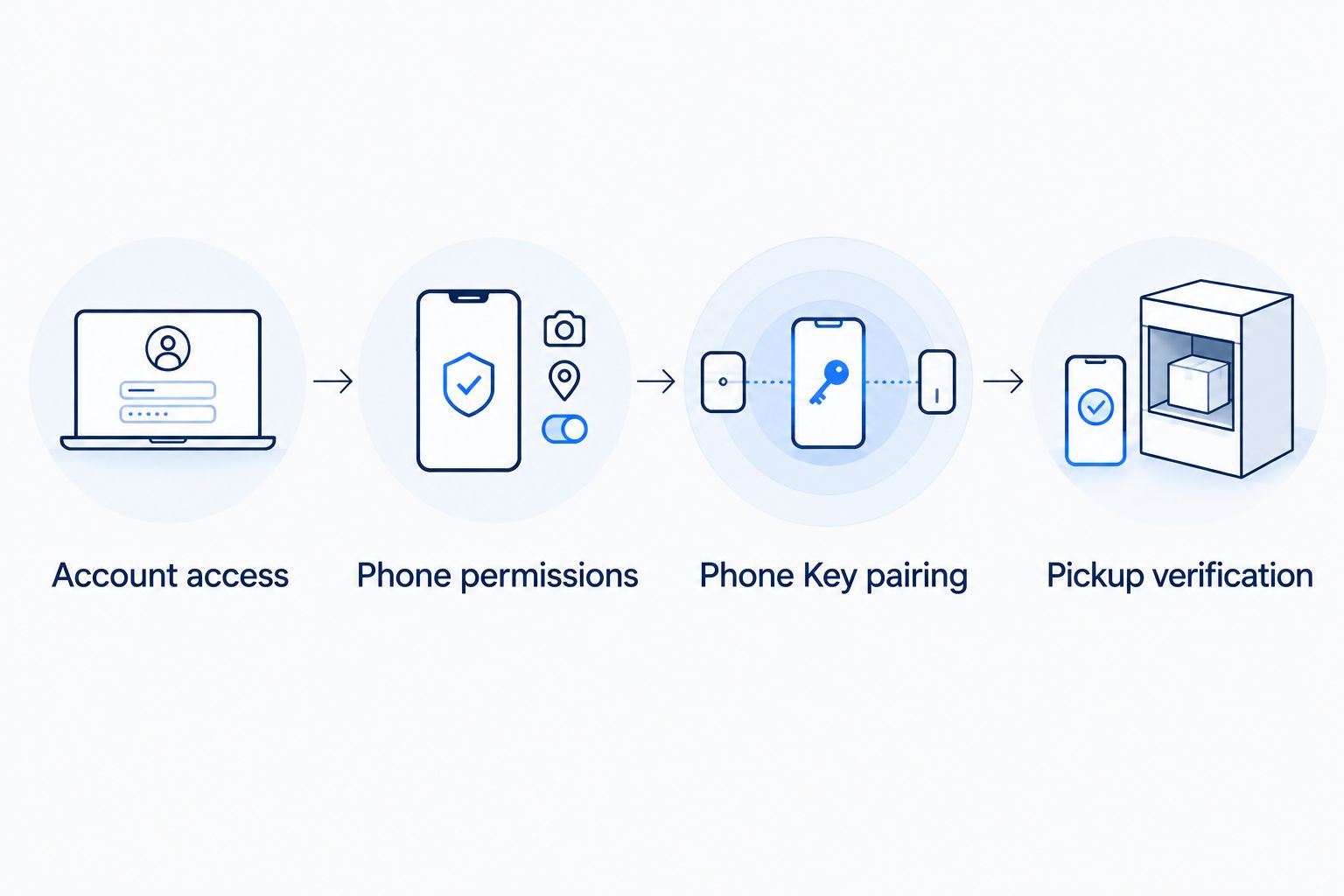
The pairing sequence has a clear order: account authorization, phone permissions, then pairing. Finishing those stages in order makes a failed step easier to identify.
Pickup verification
- Carry your phone normally and keep the key card accessible but separate. Close the doors and follow the provider's instructions for testing entry.
- Test opening the vehicle with Phone Key. If another authorized phone or key is nearby, move it away so it does not mask a problem with your setup.
- Sit in the driver's seat and press the brake to check driving authorization. Keep the vehicle stationary while confirming that no key-authentication prompt prevents you from proceeding.
- Review Controls > Locks on the vehicle touchscreen with the provider. Confirm the intended key settings, including Walk-Away Door Lock if you plan to use that feature.
- Step away and verify the vehicle's actual locking behavior. Do not assume that successful entry also proves walk-away locking is enabled.
Expected result: Your phone opens the rental and authorizes driving, and you understand how the car will lock when you leave.
Use 2 separate checks at pickup: entry and driving authorization. A remotely unlocked door does not prove Phone Key is configured.
For your 2026 departure check, carry 1 phone configured for Phone Key and 1 supplied key card as a separate backup. Those are recommended access materials, not a promise about how many cards a rental provider supplies.
Choose the right access method
Phone Key, a key card, and an app unlock command serve different purposes. Use Phone Key for everyday entry and retain the key card for independent physical access.
| Access method | Best for | Main benefit | Limitation |
|---|---|---|---|
| Phone Key | Everyday entry after authorized pairing | Uses a nearby paired phone for entry and driving authorization | Depends on phone power, Bluetooth, permissions, and completed setup |
| Supplied key card | Backup access and handoff checks | Does not depend on your phone battery or mobile internet | Requires presenting the card at the designated reader |
| Tesla app unlock command | Deliberately unlocking through the app | Lets an authorized user request an unlock | Depends on connectivity and is not the same as Phone Key pairing |
The Tesla app's remote controls and Bluetooth Phone Key do not use identical connection paths. Phone Key uses Bluetooth near the vehicle, while remote app commands depend on connectivity.
That distinction matters in a parking garage. An app command failing to reach the car does not automatically mean a correctly paired Phone Key has stopped working.
Add another authorized driver
A second driver needs an approved access arrangement, not your Tesla account password. Confirm both rental authorization and app access with the provider before setting up another phone.
- Ask the rental provider to approve the additional driver under the rental agreement.
- Have the additional driver use their own Tesla account. Ask the provider to grant access through its supported process.
- Repeat phone permissions and Phone Key pairing on that driver's phone, if permitted.
- Test the second phone while the first paired phone is away from the vehicle. Otherwise, the first phone can make an unsuccessful setup look successful.
Expected result: Each approved driver has a tested access method without sharing account credentials.
For a 2026 shared-driver checklist, decide who carries the backup card and how you will exchange it when plans separate. Phone access is convenient; a clear handoff remains essential.
This workflow does not grant permission to share the rental with an unapproved driver. The rental agreement controls who can drive, even when a phone can technically be paired.
Troubleshooting
The rental does not appear in the app
Ask the provider to confirm that access was granted to the email used by your signed-in Tesla account. Check for an invitation awaiting acceptance, then reopen the app after completing it.
Fix authorization first. Bluetooth changes will not resolve a missing vehicle in your account.
The doors open, but driving requires a key
Check whether you opened the door with an app command rather than Phone Key. Complete Phone Key pairing, then test driving authorization while stationary.
Use the supplied key card at the designated reader when instructed. Ask the provider to demonstrate the reader location before departure.
Phone Key works inconsistently
Check Bluetooth, Tesla app permissions, and background battery restrictions. Keep the phone accessible rather than buried beneath luggage, and avoid force-closing the app during normal use.
If the problem continues, use the key card and contact the provider. Do not delete other vehicle keys or change account ownership to troubleshoot your phone.
The app unlock command fails
Check connectivity on your phone and retry from a location with service. Remote commands also require the vehicle to communicate with Tesla's services.
Try the already-paired Phone Key beside the vehicle or use the key card. These access methods help you distinguish a connectivity issue from an authorization issue.
Walk-away locking does not happen
Review Controls > Locks > Walk-Away Door Lock and check whether another authorized key remains near or inside the vehicle. Verify locking directly before leaving.
Do not use distance alone as proof that the rental is secure. Phone Key setup and automatic-lock settings are separate checks.
Customize your rental workflow
Build your access routine around the trip. Keep the key card separate from your phone, choose a consistent charging routine for the phone, and agree on access responsibilities with any approved additional driver.
Suiteescape's Los Angeles Tesla rental offering combines concierge delivery with unlimited miles. The advantage is a simpler handoff and flexible travel distance; Phone Key still requires provider authorization, correct setup, and a working phone.
For road trips, confirm your vehicle charging plan alongside your phone-access plan. Unlimited miles do not remove charging stops or the need to understand return instructions.
FSD (Supervised) is separate from keyless entry. The driver must remain attentive and responsible whenever using FSD (Supervised); connecting the app does not make the rental autonomous.
Before departure, also confirm the return access method. Your 2026 return checklist should cover the supplied key card, personal belongings, saved phone connections, and the provider's process for ending temporary app access.
Plan your Los Angeles Tesla rental
Explore concierge delivery and unlimited miles, then confirm the app-access process for your reservation.
FAQ
How do I connect the Tesla app to a rental for keyless entry?
Get authorized app access from the rental provider, sign in to your Tesla account, and complete Phone Key setup beside the vehicle. Test both door entry and driving authorization before leaving the handoff location.
Can I add a rental Tesla to the app myself?
You need the rental provider to authorize access; installing the app does not grant access to a rental. Do not use an ownership-transfer process for a temporary rental.
Is Bluetooth audio pairing the same as Tesla Phone Key?
No, Bluetooth audio pairing does not authorize entry or driving. Set up Phone Key separately through the Tesla app after the provider grants access.
Does Tesla Phone Key work without mobile service?
A correctly configured Tesla Phone Key uses Bluetooth near the vehicle rather than relying on a mobile-data connection for normal nearby access. Initial account setup and remote app commands require connectivity, so keep the supplied key card available.
What happens if my phone battery dies during the rental?
Use the supplied key card at the vehicle’s designated reader. Ask the rental provider to demonstrate door entry and driving authorization with the card during pickup.
Can two people connect their phones to the same rental Tesla?
Two approved drivers can use separate Phone Keys when the provider permits and authorizes that arrangement. Each driver should use their own account and test their phone without another authorized phone nearby.
What should I check before returning a Tesla rental in 2026?
Confirm the provider’s instructions for returning the key card and ending temporary app access. Remove your belongings and personal phone connections without deleting other authorized vehicle keys.
One last thing
Test your phone without another authorized phone beside the car. A successful door opening proves little if the delivery representative's phone is also acting as a key.
Ask the representative to step away, keep the backup card accessible, and repeat entry plus driving authorization. That simple isolation check gives you a clearer answer than repeatedly opening the app.
Related guides
- Tesla accessories for renters in Los Angeles
- Places to charge a rental Tesla near LAX
- Day trips from Los Angeles in a rented Tesla

[…] your rental arrangement includes app access, review the Tesla app connection and keyless-entry guide before arrival. Confirm which access method applies to your reservation rather than assuming a […]
[…] your rental has been added to your permitted Tesla app access. Follow the Tesla app rental connection guide before trying to send […]
[…] method and complete the handoff before driving. If your arrangement includes app access, use the Tesla app rental keyless-entry guide before arrival rather than assuming your personal Tesla account already controls the […]
[…] to authorize entry and driving, not different rental agreements. If you want phone access, review how to connect the Tesla app to your rental for keyless entry before your […]