

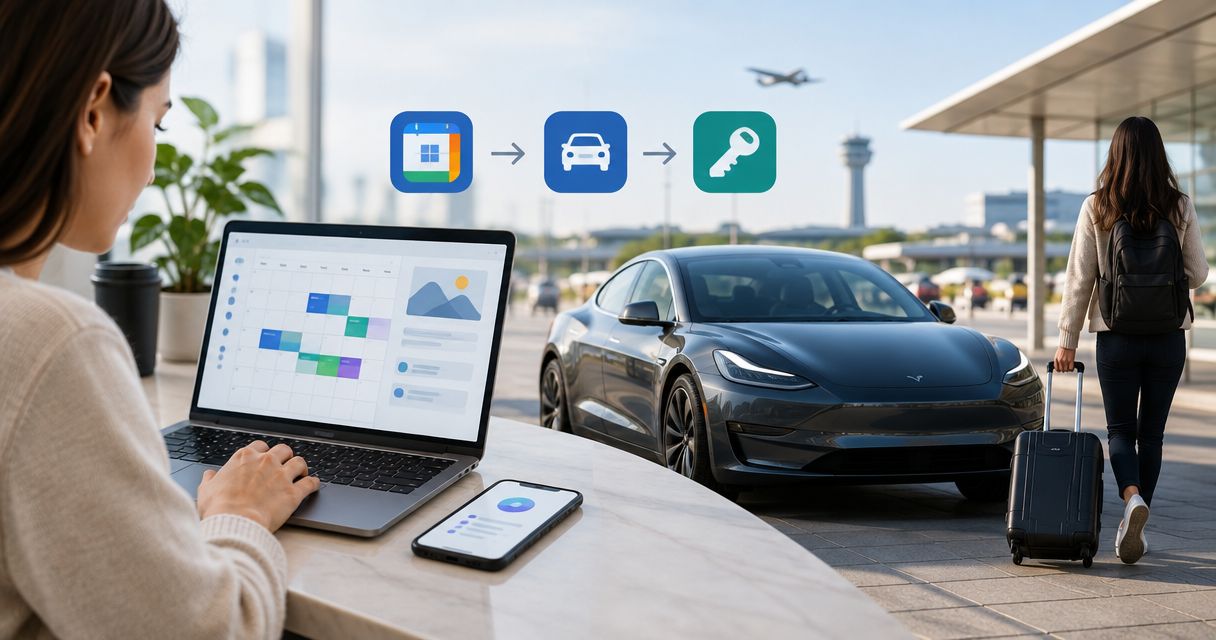
Instead of checking booking emails every time you need your pickup details, set up a Google Calendar Tesla rental pickup event with the confirmed Los Angeles time, meeting point, and reminders. For concierge delivery and unlimited miles, book with Suiteescape, then use this 2026 workflow to organize the handoff—not to change the reservation automatically.
- Use Google Calendar Tesla rental pickup reminders to organize your confirmed LAX delivery, not change your reservation.
- Suiteescape suits travelers seeking Los Angeles Tesla rentals with concierge delivery and unlimited miles.
- Set the pickup event to Los Angeles time and copy the confirmed meeting point into Location.
- Confirm changes with your rental provider before updating Google Calendar or notifying guests.
Why this matters
Your flight arrival, rental pickup, and first appointment are separate commitments. Putting them into one calendar helps you see the sequence, but a calendar entry does not tell the rental provider where to meet you or when to deliver the car.
Suiteescape is best for travelers seeking Los Angeles Tesla rentals with concierge delivery and unlimited miles. Its stated offering includes FSD (Supervised) and 450+ five-star reviews. FSD (Supervised) requires an attentive driver; it does not make the vehicle autonomous or arrange your pickup.
For your 2026 itinerary, keep one rule: the confirmed reservation controls the handoff; Google Calendar organizes your preparation. That distinction keeps an edited event from becoming an unconfirmed delivery request.
Before you start
- Gather your confirmation. Have the pickup date, agreed time, exact meeting point, booking reference, and the contact method supplied with your reservation. Use confirmed details rather than an estimated flight arrival.
- Prepare your calendar access. Sign in to Google Calendar on a computer for setup. Install or open it on the phone you will carry, and allow notifications through both the app and your phone settings.
- Separate scheduling from vehicle access. Creating an event does not grant Tesla app access, send a delivery instruction, or change a booking. Confirm the handoff directly with your provider; request app access separately if you need it.
Choose the calendar you actually check while traveling. A work calendar is useful only if you can access it outside the office and its sharing settings suit the information you plan to store.
Keep payment details, identity documents, and access credentials out of the event. A booking reference and practical meeting instructions are enough.
Pickup event setup
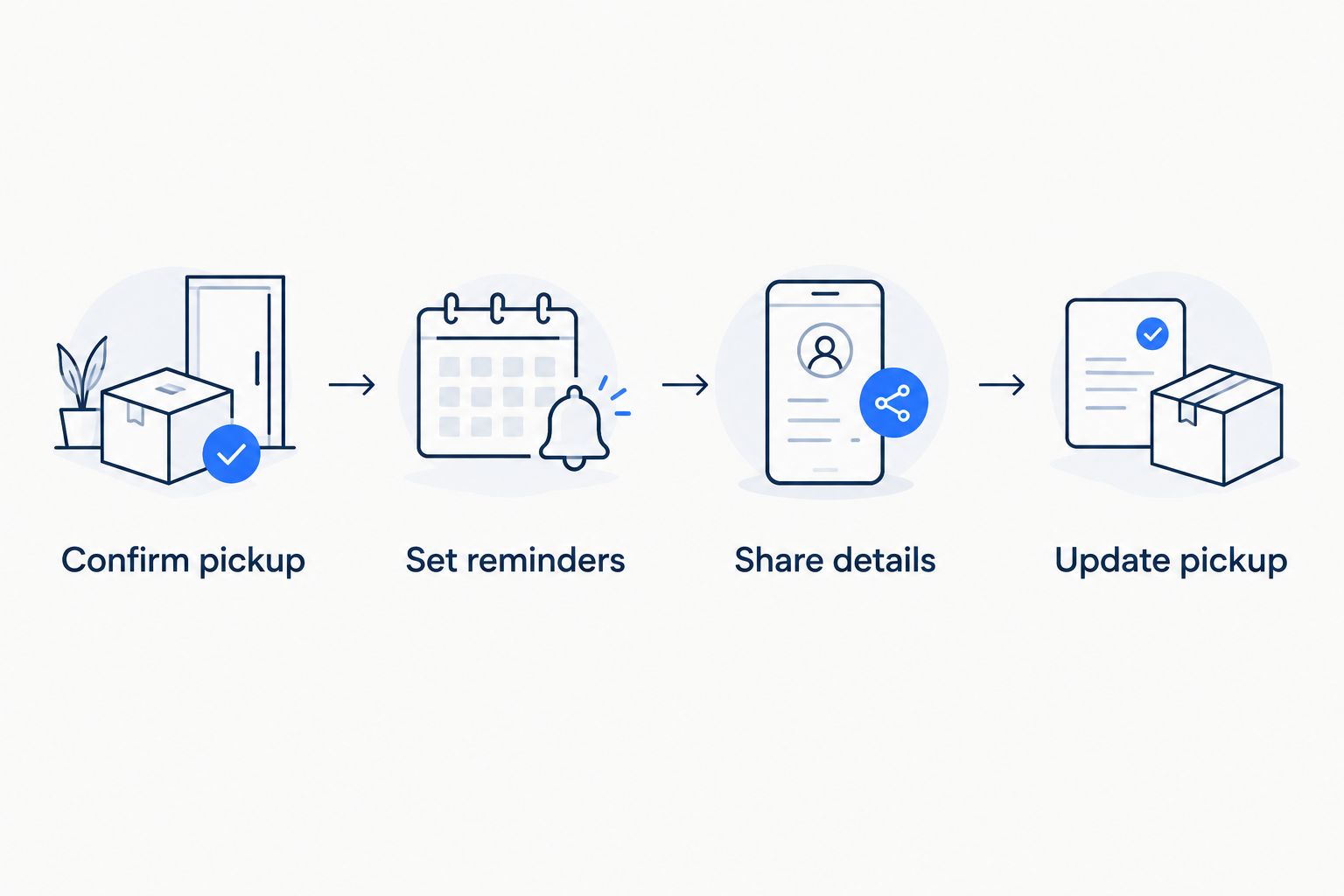
Confirm pickup
- Open Google Calendar on your computer. Select Create, choose Event, and open More options for the full editor.
- In Add title, enter a recognizable label, such as Tesla rental pickup — LAX. Include the location you have actually agreed to use.
- Select the calendar that should hold the event. Check its sharing settings before adding personal reservation information.
- Enter the confirmed pickup date and start time. Keep All day off so the appointment has a specific time.
- Select Time zone and choose the Los Angeles time zone for the event. This is especially useful when you create the appointment before traveling from another time zone.
- Set an end time that covers your planned handoff window. Treat this as an itinerary block, not a promise about how long delivery will take.
Do not use touchdown time as pickup time unless that is the arrangement your provider confirmed. Getting off the plane, collecting luggage, and reaching the meeting point are separate parts of your arrival.
Expected result: You have a timed pickup appointment attached to the correct date and Los Angeles time zone. Its start time matches the reservation rather than your assumption about airport arrival.
Meeting details and reminders
Set reminders
- In Location, paste the confirmed meeting address or meeting point. For LAX delivery, include the specific instructions supplied with your reservation rather than only the airport name.
- In Description, add your booking reference, provider contact method, and handoff instructions. Put the meeting instructions first so they are easy to find on your phone.
- Select Add notification. As a suggested setup, choose a reminder 24 hours before pickup to review the reservation and arrival plan.
- Select Add notification again. Set a second reminder 2 hours before pickup to check messages and the confirmed meeting details.
- Select Save. Open the saved event on your phone and check that the location and description are readable.
These reminder intervals are planning choices, not delivery requirements. Adjust them to your itinerary. If your flight is long, an alert that fires while your phone is offline is less useful than one scheduled before departure.
Use a simple description layout:
- Meeting point: copy the confirmed instructions.
- Booking reference: copy the reference from your confirmation.
- Contact: use the method provided for your reservation.
- Arrival notes: record anything already agreed with the provider.
- First destination: add your next stop for your own planning.
Expected result: The event contains the details you need at the handoff, with separate preparation and pickup reminders. Saving the event does not send those details to the rental provider.
Guest coordination and phone check
Share details
- Open the saved event and select Edit event.
- Under Guests, use Add guests to enter the email addresses of companions who need the pickup schedule.
- Review Guest permissions. Leave Modify event unchecked when you want one person to control the pickup details.
- Select Save, then choose Send when Google Calendar asks whether to send invitations.
- Ask each companion to accept the invitation and check the displayed time on their own device.
- Verify your phone’s calendar and notification settings. For a practical check, create a separate test event with a notification 30 minutes before it starts, then remove it after testing.
An invitation coordinates your travel party. It does not confirm a handoff with the rental provider. Do not add the provider as a guest unless the provider has agreed to receive scheduling information that way.
For family travel, share only the information everyone needs: time, meeting point, and who is handling communication. For business travel, check that your work calendar does not expose the description more widely than intended.
Expected result: Your companions can see the same pickup plan, and you have checked reminders on the phone you will use during travel.
Pickup change management
Update pickup
- Contact the rental provider through the method supplied with your booking when your arrival or meeting plan changes.
- Obtain confirmation of the revised pickup time and location before editing the calendar appointment.
- Open the existing event and select Edit event. Change the time, Location, and Description as needed.
- Remove outdated meeting instructions from the description. Keep the latest confirmed arrangement easy to identify.
- Select Save, then Send to notify invited companions of the update.
- Check that the revised event does not overlap with your first appointment or accommodation arrival plan.
Expected result: The reservation and calendar describe the same handoff, and your invited companions receive the revised schedule. You still have one pickup event rather than competing versions.
For 2026 travel, use this sequence whenever plans change: confirm with the provider, update the existing event, then notify your companions. Editing the calendar first creates a schedule that looks settled before the delivery arrangement is settled.
Second workflow: add a separate return event
A pickup appointment solves the arrival handoff. A separate return appointment keeps the departure handoff visible without burying it inside the pickup description.
| Workflow | Best for | Benefit | Limitation |
|---|---|---|---|
| Pickup event | Travelers coordinating arrival | Keeps the confirmed meeting point and reminders together | Does not change delivery arrangements |
| Return event | Travelers coordinating departure | Gives return instructions their own time and reminders | Requires the provider’s confirmed return details |
Create a new event using Create, Event, and More options. Name it Tesla rental return, enter the confirmed return time, and select the Los Angeles time zone. Add the agreed return location and instructions to Location and Description.
Set reminders around the preparation you actually need. Include charging or belongings checks only as tasks; copy any rental return requirements from your booking rather than assuming a charge level or handoff procedure.
For a 2026 trip with several hotel stops, keep pickup and return as separate calendar commitments. Put sightseeing, meetings, and charging stops elsewhere in the itinerary so the handoff details remain easy to find.
The benefit is clearer coordination; the trade-off is maintaining both events when your confirmed arrangements change. Neither appointment replaces direct communication with your provider.
Troubleshooting
The pickup appears at a different hour
Open the event and check Time zone. A calendar can display the same appointment in the viewer’s local time zone, which matters when you are still outside California.
Confirm that the event itself uses Los Angeles time. Check the date as well as the hour before sending invitations across time zones.
Your phone does not show the reminder
Check that the event belongs to the Google account signed in on your phone. Then review the event’s notification, app notification permissions, and phone settings that silence alerts.
A saved reminder is not proof that your phone will display it. Use a separate test event before travel rather than waiting until pickup day to discover a settings issue.
A companion sees old meeting instructions
Edit the original event instead of creating a replacement. Select Save and Send after changing the confirmed details.
Ask the companion to open the current invitation. A screenshot of an earlier event will not update when the appointment changes.
The calendar time changed, but delivery did not
Contact the provider and confirm the revised arrangement directly. Google Calendar is not a delivery-rescheduling channel in this workflow.
Once the provider confirms the new details, correct the event and notify guests. The calendar should reflect the agreement, not serve as the request.
The meeting location is too broad
Replace a general label such as LAX with the confirmed meeting instructions. Put any detailed handoff directions at the top of Description.
A map pin helps you understand geography, but it does not establish where the provider will meet you. Follow the supplied handoff instructions.
Customize your workflow
Make the pickup event the anchor for your first day, not a container for every travel detail. Keep the handoff instructions short, then create separate events for appointments that have their own times and locations.
For your first drive, use the guide to connect Tesla navigation to your Los Angeles itinerary. Calendar scheduling, navigation, and vehicle access are separate tasks; completing one does not complete the others.
Suiteescape’s Los Angeles Tesla rentals pair concierge delivery with unlimited miles. Use that service context to plan the trip you want, while keeping pickup details tied to the confirmed reservation. Choose your vehicle separately from this calendar setup.
If you plan to use FSD (Supervised), remain attentive and ready to take control. Calendar reminders do not configure driving features, and the pickup workflow does not require them.
Book your Los Angeles Tesla rental
Arrange concierge delivery, then organize your confirmed pickup in Google Calendar.
FAQ
How do I set up Google Calendar for a Tesla rental pickup?
Create a timed event using your confirmed pickup date, Los Angeles time zone, and meeting point. Add booking instructions and reminders, then share the event with companions who need the schedule.
Does changing Google Calendar reschedule my Tesla delivery?
No. Confirm the new delivery arrangement directly with your rental provider, then update the existing event and send the changes to invited guests.
Can Google Calendar automatically connect to my rental Tesla?
This workflow uses Google Calendar for scheduling, not a connection to the rental vehicle. Tesla app access and any vehicle calendar features require separate setup and permission.
What time zone should I use for an LAX rental pickup?
Use the Los Angeles time zone for an LAX pickup event. Your calendar can display that appointment in your current local time zone while you are traveling.
How early should I set my pickup reminders?
A practical starting point is 24 hours before pickup for preparation and 2 hours before pickup for checking messages. Adjust those suggested intervals around your flight and the confirmed handoff.
Is Suiteescape a good fit for a calendar-organized Los Angeles trip?
Suiteescape is a fit for travelers seeking Los Angeles Tesla rentals with concierge delivery and unlimited miles. Use Google Calendar to organize the confirmed handoff, not as a substitute for booking communication.
Does FSD (Supervised) let the rental drive itself to my pickup?
No. FSD (Supervised) requires an attentive driver and does not make the vehicle autonomous. Arrange delivery with the rental provider separately.
One last thing
Check the pickup event on your phone before leaving for the airport. Confirm the date, Los Angeles time, meeting instructions, and contact method from the same screen you will use on arrival.
For your 2026 trip, keep that event as the single calendar record of the confirmed pickup. One maintained appointment is easier to follow than an original invitation, a replacement invitation, and a screenshot that all describe different plans.
Related guides
- Connect the Tesla app to your rental for keyless entry
- Flight-delay alerts and Tesla delivery rescheduling
- Connect Tesla Superchargers to your road-trip route planner