

How to Configure Tesla Profiles for Every Drive
The first few minutes in a Tesla can shape the entire trip. When you configure Tesla profiles before leaving the pickup location, the vehicle starts to feel less like a rental and more like your own carefully considered space – from seat position and mirrors to navigation favorites and climate preferences. For a drive from LAX to Santa Monica, a business meeting in Beverly Hills, or a weekend up the coast, those small details make a noticeable difference.
A Tesla is designed around personalization, but the best setup is not always about changing every setting. It is about choosing the preferences that make you comfortable, keeping the vehicle easy to share, and understanding which features travel with your Tesla Account. Here is how to approach it with confidence.
What a Tesla Profile Actually Does
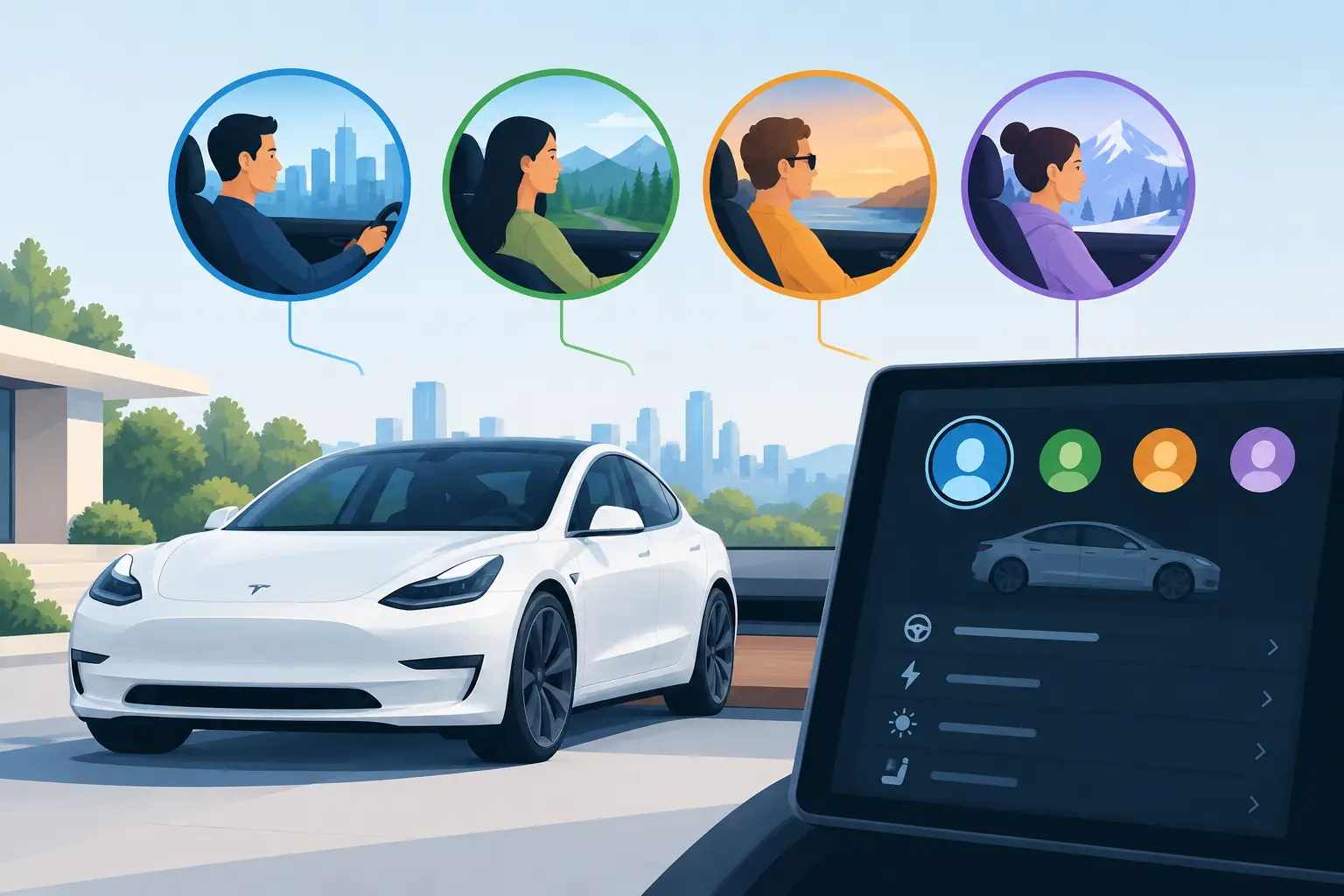
Tesla uses driver profiles to remember the physical settings associated with a particular driver. Depending on the vehicle and software version, a profile can retain preferences such as seat position, steering wheel position, side-mirror placement, display preferences, climate settings, driving mode selections, and driver-assistance preferences.
That distinction matters in a premium rental. You can make the cabin fit you without needing to repeatedly reset the seat after another driver takes the wheel. If you are traveling as a couple, with colleagues, or with family, separate profiles keep the handoff between drivers polished rather than frustrating.
A Tesla Profile connected to your Tesla Account can add another layer of convenience. Account-based syncing can bring select preferences into the vehicle and help make familiar settings available when you sign in. The exact features that sync can vary by model, software release, account status, and vehicle configuration, so it is wise to treat the profile as a helpful head start, not a substitute for a quick check before driving.
How to Configure Tesla Profiles in a Rental
Start while the vehicle is parked, with a few uninterrupted minutes before your first departure. The profile controls are typically accessed through the driver profile icon on the touchscreen. Tesla updates its interface regularly, so labels and placement may look slightly different from vehicle to vehicle.
Sign in with your Tesla Account when available
If your rental experience includes Tesla account and profile synchronization, use your own Tesla Account to access supported personalized features. This is particularly useful for existing Tesla owners who already have familiar preferences, saved destinations, and app access tied to their account.
If you are Tesla-curious or do not have an account, you can still create or select a local driver profile in the vehicle. You do not need to own a Tesla to make the driving position comfortable and the screen settings easy to use.
Before entering account credentials, confirm that you are in the correct vehicle and follow the instructions provided with your rental. When the trip ends, sign out if directed by your host and remove any personal destinations or information you would prefer not to leave behind.
Create a profile for each regular driver
Choose Add New Driver Profile or the comparable option shown on the screen, then give the profile a clear name. First names work well. Avoid generic labels like “Driver” if more than one person will use the vehicle, especially on a longer Los Angeles stay where different drivers may take turns handling airport runs, dinner plans, and day trips.
Once the new profile is selected, adjust the seat, steering wheel, and mirrors. Take a moment to do this correctly. Set the seat height so you have a clear view of the road and display, position the steering wheel comfortably, and verify both side mirrors before shifting into drive.
Save the adjustments when prompted. Tesla may ask whether you want to save a new seating position to the active profile. Confirm it only after you are happy with the placement. A quick test of brake-pedal reach and rearward visibility is worth more than rushing out of the parking space.
Set the preferences you will feel every mile
The most useful settings are often the least flashy. Set a comfortable cabin temperature, choose your preferred display brightness, and decide whether you want navigation voice guidance at a lower volume or more prominent. If you use phone audio, pair your device before departure so calls, podcasts, and playlists are ready when traffic starts moving.
Navigation is especially valuable for visitors. Save your hotel, event venue, or favorite Los Angeles stops, then let Tesla route with charging in mind when needed. The system can plan charging stops, but you should still review the route before a long drive. Traffic, elevation, weather, speed, and cabin climate all affect range.
If you have a compatible Tesla app setup, it can also simplify access and vehicle management. Keep your phone charged, make sure Bluetooth permissions are enabled if required, and carry the provided key card as a backup. Technology should reduce friction, not leave you dependent on a low battery at the end of an evening.
Make Driver Assistance Settings a Deliberate Choice
Tesla Full Self-Driving capabilities can be a defining part of the experience, particularly for guests who want to see what advanced driver assistance feels like on a real trip. Still, profile personalization is not the same as handing over responsibility.
Review driver-assistance settings while parked, and use features only when you understand the vehicle prompts and road conditions support their use. Full Self-Driving requires active supervision at all times. Keep your hands ready, stay attentive, watch the road, and be prepared to take over immediately. It is an advanced driving aid, not a replacement for an engaged driver.
If more than one person will drive, make sure each driver knows how the vehicle behaves under their selected settings. One guest may prefer a more familiar, hands-on drive through dense city traffic, while another may appreciate driver assistance on a longer freeway stretch. There is no prize for using every feature. The best setting is the one that leaves you calm, alert, and in control.
Preferences Worth Leaving Alone
A rental Tesla gives you meaningful personalization without requiring a full vehicle overhaul. Some changes can create unnecessary confusion for other drivers or affect the next part of your trip.
Be thoughtful around charging limits, security settings, software updates, factory resets, and any feature that changes access to the vehicle. Charging limits may be set for battery care or the itinerary, and altering them without a reason can complicate planning. Likewise, do not initiate a software update while you need the vehicle, since updates can temporarily make it unavailable to drive.
You also do not need to make every screen, alert, or driving preference permanent. For a short getaway, focus on comfort, navigation, phone pairing, and driver position. That delivers nearly all the benefit with far less effort.
A Better Setup for Couples, Families, and Work Trips
For two drivers, separate profiles are the cleanest option. Set up the primary driver first, then switch profiles and repeat the seating and mirror process for the second driver. Before each person drives, glance at the profile name on the display. It takes seconds and prevents the familiar surprise of a seat moving farther back or forward than expected.
For family travel, keep the driver profiles limited to the people who will actually drive. Passengers can enjoy music, route suggestions, and the panoramic cabin without needing their own vehicle profile. If you are traveling with children, review child-lock settings and door operation before loading up for the first outing.
For a work trip, build your setup around reliable movement. Pair your phone, save the hotel and meeting locations, check your route and charge level, and keep the cabin calm enough for calls between appointments. A clean Tesla with your profile ready can turn the drive from a logistics task into a composed part of the day.
Before You Return the Vehicle
A thoughtful profile setup should end with a thoughtful sign-out. Remove personal items, disconnect your phone if requested, and review any saved locations or account access that you do not want to remain in the vehicle. Do not factory reset the car unless your rental team specifically instructs you to do so.
If you need help with profile syncing, app access, charging, or a setting that does not look right, ask before experimenting. Concierge-style support is there to keep the experience easy. The Suite Escape team can help guests focus on the road ahead rather than troubleshooting a touchscreen.
Your Tesla should adapt to your trip, not ask you to adapt to it. Set the seat, save the route, choose the settings that make you comfortable, and let the next drive feel like it was planned around you.