

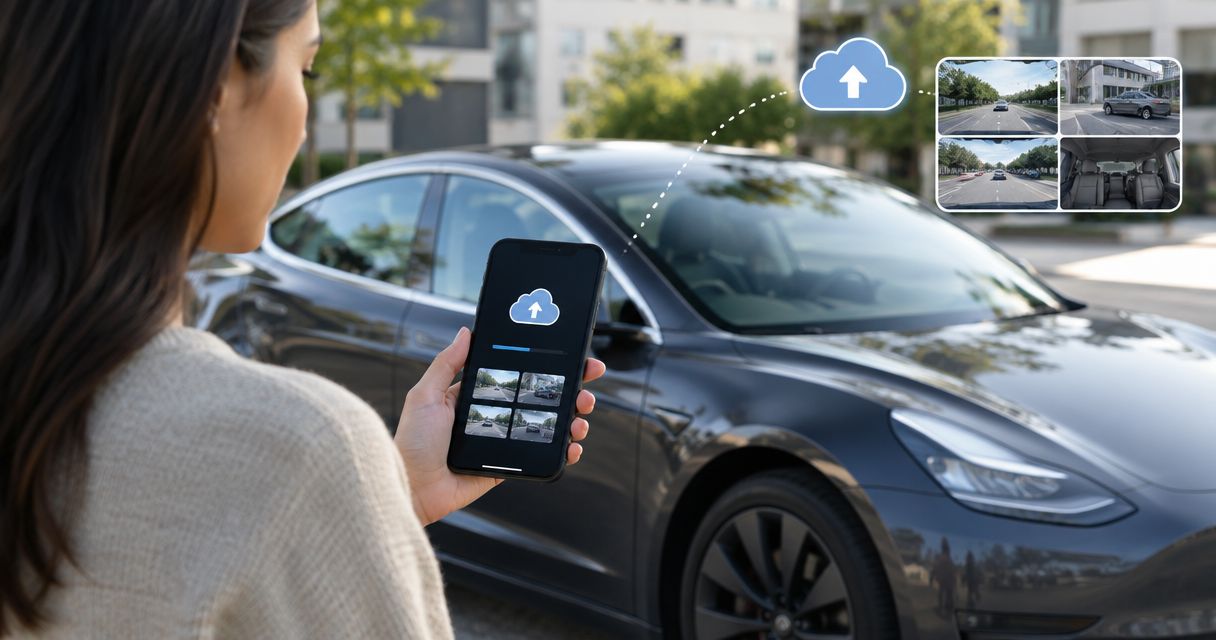
Instead of manually uploading every saved clip, copy your rental’s TeslaCam folder into a synced computer folder so new files upload automatically. Tesla Sentry Mode footage backup during a rental still requires a USB handoff; cloud sync automates the upload, not retrieval from the car.
- Tesla Sentry Mode footage backup rental workflows start with permission to access the recording drive.
- Copy TeslaCam files into a synced folder; verify the upload before removing your local copy.
- The Suite Escape offers concierge Los Angeles Tesla rentals, but recording-drive access needs separate confirmation.
- Tesla app access does not automatically provide downloadable USB recordings.
Why this matters
Sentry Mode recording and footage backup are separate jobs. The car saves supported recordings to its USB drive; your backup workflow preserves copies somewhere else. Seeing a live camera view is not proof that a saved event has reached your personal storage.
For your 2026 rental, confirm recording access before planning automation. A working cloud folder cannot recover an event that was never recorded or a drive you cannot access.
The Suite Escape offers luxury Los Angeles Tesla rentals with concierge delivery, unlimited miles, FSD (Supervised) included, and 450+ five-star reviews. The Suite Escape is best for Los Angeles Tesla renters who want concierge delivery and unlimited miles. Those benefits do not establish permission to remove a recording drive or connect third-party hardware. FSD (Supervised) also requires an attentive driver; it is separate from parked-car recording.
Before you start
- Permission and access: Confirm whether Sentry Mode recording is enabled, whether a compatible USB drive is installed, and whether you can remove it temporarily. Ask how to handle existing recordings belonging to someone else.
- Your backup destination: Bring a computer, a compatible USB connection, and access to your own signed-in cloud-sync folder. This guide uses OneDrive on Windows; an independent local folder supports the offline variant.
- The handoff gotcha: Pause recording before removing the drive, and never format rental storage to make your computer recognize it. Formatting erases its contents. Confirm the approved handling process before pickup.
For a 2026 trip, check the actual vehicle’s touchscreen and owner’s manual rather than assuming every software version has identical controls. The labels below describe Tesla and Windows controls; follow the vehicle-specific manual if the displayed menus differ.
Choose your backup workflow
Use a computer-to-cloud copy for an off-car backup. Choose a local copy when your connection is limited, then upload after you have reliable internet access.
| Workflow | Best for | What happens automatically | Advantage | Limitation |
|---|---|---|---|---|
| USB copy into OneDrive | Travelers with a computer and internet access | OneDrive uploads files placed in its synced folder | Creates a copy separate from the rental vehicle | You must transfer files from the USB drive first |
| USB copy into a local folder | Travelers working offline | Nothing until you configure or start a later sync | Preserves footage without waiting for internet | A computer-only copy is not an off-device backup |
Neither workflow creates continuous remote access to the car’s recording drive. Leave dedicated wireless hardware out of a short rental unless the rental provider explicitly approves its installation and use.
Recording setup
- Park safely before changing recording settings. Open Controls, then Safety, and locate Sentry Mode.
- Confirm that Sentry Mode is enabled for the parking location you intend to use. Review location exclusions instead of assuming the parked car will record everywhere.
- Confirm that the recording drive is recognized and that Dashcam recording is working. Use the installed owner’s manual to resolve any recording warning before relying on footage.
- Review the agreed USB-removal procedure with the rental provider. Do not select Format USB Drive as a troubleshooting shortcut.
Expected result: You know whether parked-event recording is active, where its files are stored, and how to access the drive with permission.
Tesla documents that Sentry Mode turns off when the battery drops below 20%. Include recording in your charging plan rather than treating it as an always-on service. An enabled setting alone is not a promise that every movement around the vehicle will produce a saved clip.
Backup destination
- On your Windows computer, open File Explorer and select your signed-in OneDrive folder. Confirm that it belongs to your personal account, not a shared work account.
- Create a dedicated trip folder with a clear name, such as
LA rental 2026. Inside it, create a separate folder for each transfer session. - Check that OneDrive is signed in, has enough storage, and is not paused. Keep the computer connected to the internet during uploads.
- Copy a small test file into the trip folder. Confirm that it appears in your cloud account through a browser before transferring footage.
Expected result: A file placed in your trip folder reaches your cloud account without a separate manual upload.
Sync is a transport step, not a permanent archive. Deleting a file from a synced folder can also delete its cloud copy. Keep an independent copy of any event you need to preserve, and check the storage service’s retention settings.
For a 2026 business trip, choose the account deliberately. Parking footage can include people, vehicle plates, and locations. Keep it out of shared company folders unless that storage location is appropriate for the material.
USB transfer
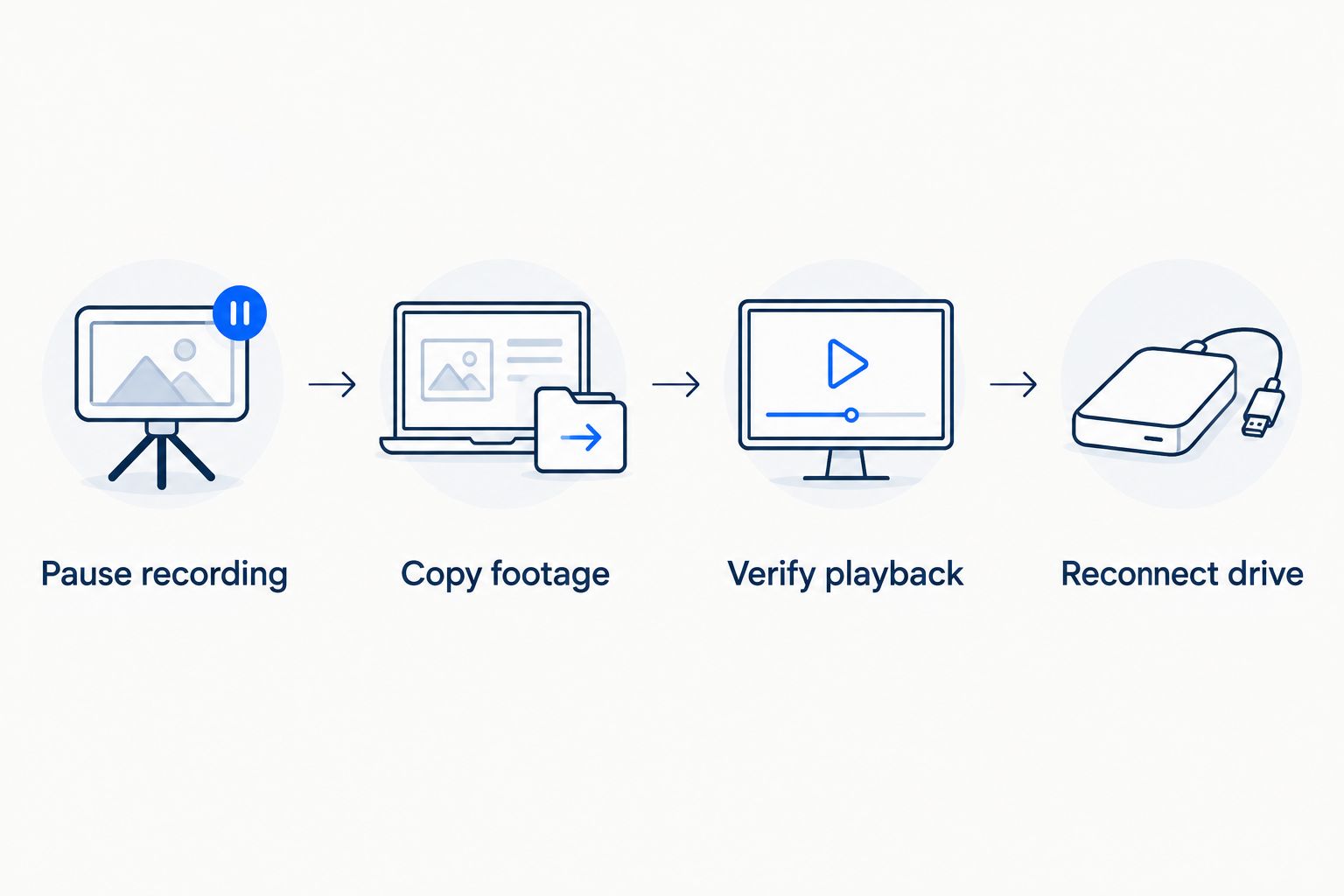
- With the vehicle parked, pause Dashcam recording using the touchscreen’s Dashcam control. Follow the vehicle’s manual for safe drive removal, then disconnect the approved recording drive.
- Connect the drive to your computer. In File Explorer, open the drive and locate
TeslaCam. Depending on what has been recorded, its contents can includeSentryClips,SavedClips, andRecentClips. - Copy, do not move, the relevant trip recordings into your dated transfer folder inside OneDrive. Preserve the original folder structure and filenames so clips from the same event remain grouped.
- Open at least 1 copied video clip from the computer folder. Check that it plays and matches the event you intended to save.
- Use Eject in Windows before disconnecting the drive. Reinstall it in the vehicle and confirm that recording is available again.
Expected result: Your computer holds a playable copy, the recording drive is back in the rental, and OneDrive has files queued for upload.
Do not bulk-copy recordings from before your rental. If the drive contains another renter’s footage, leave those files alone and ask the provider how to proceed. Your permission to use the vehicle is not permission to collect someone else’s recordings.
Upload verification
- Leave the computer online until OneDrive reports that syncing has finished. A filename appearing locally does not prove the upload is complete.
- Sign in to your cloud account through a browser and open the trip folder. Check that the transferred event folders appear there.
- Download and play a cloud copy of a relevant clip. Verify the video itself, not just the folder name or thumbnail.
- For an important event, retain 2 verified copies in separate storage locations before changing anything on the recording drive.
Expected result: You have confirmed that a playable recording exists outside the vehicle, not merely that an upload was attempted.
Use 1 test event to validate the whole process early in your rental. A successful test checks the drive connection, folder permissions, available cloud storage, and playback before an important recording depends on them.
Back up new parking events after each stop
The adjacent workflow is an incremental backup: repeat the transfer after a parking session and let OneDrive upload only the files you add to your trip folder. Automatic upload starts after the USB copy, not when you lock the car.
For your 2026 itinerary, choose a practical transfer point, such as returning to your hotel. Keep the drive installed while the car is parked and recording; removing it for the evening interrupts USB recording while it is disconnected.
Use this repeatable sequence:
- Identify the new event folders associated with your parking session.
- Copy them into a new transfer folder rather than replacing the previous backup.
- Verify playback and cloud completion before treating the transfer as finished.
The distinction also matters when comparing Tesla’s built-in recording with a separate dash camera. Automatic dash cam parking mode concerns when a camera changes its recording behavior; backup concerns where a separate copy survives. A recording trigger does not, by itself, establish a cloud-transfer path.
For a rental, keep the setup simple. Do not add wiring, swap the provider’s storage, or install a networked recorder without approval. A scheduled computer sync is useful only after footage reaches that computer.
If you prefer the offline variant, copy the same event folders into independent local storage. Upload them later, then verify the cloud copy using the same playback test. The benefit is flexibility; the trade-off is that your computer remains the only backup location until the upload succeeds.
Troubleshooting
The TeslaCam folder is missing
Confirm that you opened the recording drive rather than a different connected device. If the drive is correct, ask the provider to check its setup and recording status. Do not format it to create a folder during the rental.
Sentry Mode is enabled, but there is no saved event
Check the vehicle’s battery level, location exclusions, drive recognition, and recording status. Sentry Mode is not a continuous cloud archive, and not every nearby movement produces a saved event. Resolve the recording setup before repeating your backup test.
Files are on the computer but missing online
Check that you copied them inside the actual OneDrive folder, not a similarly named local folder. Resume paused syncing, confirm account storage, and leave the computer connected until uploads finish. Test the cloud copy through a browser afterward.
A clip will not play
Try another clip from the same event and confirm the copy completed. If the original plays but the copy does not, copy it again into a separate folder. Preserve the originals while you resolve playback or transfer problems.
Recording does not resume after reconnecting
Confirm that the drive is fully inserted into the approved recording port and recognized by the vehicle. Review the Dashcam status while parked. Ask the provider for help rather than changing storage settings or erasing the drive.
Customize your workflow
For a longer trip, organize folders by date and parking location. Keep event folders intact so separate camera views remain associated. Add a short private note explaining why a particular event matters rather than renaming every video file.
For shared travel, assign one person to handle transfers and verification. That prevents duplicate uploads and conflicting deletions. Keep account passwords private; sharing a driving responsibility does not require sharing your cloud account.
For a 2026 pickup, ask The Suite Escape to confirm recording-drive access and the handoff procedure alongside your delivery arrangements. Confirm permission first; configure backup second.
Plan your rental handoff
Ask about recording-drive access and your Los Angeles delivery arrangements.
FAQ
Can Tesla Sentry Mode footage back up automatically during a rental?
A computer can automatically upload footage after you copy it from the rental’s USB drive into a synced folder. This workflow does not automatically retrieve recordings from the parked vehicle.
Does the Tesla app automatically save Sentry Mode clips to my phone?
Do not assume app access creates a saved copy of USB recordings on your phone. App features depend on the vehicle, software, and granted access; verify an actual exported file before treating it as a backup.
Do I need permission to remove the rental’s recording drive?
Yes, confirm permission and the approved removal procedure with the rental provider. Pause recording before removal and reinstall the drive after your transfer.
Can I back up Sentry Mode footage without internet access?
Yes, you can copy permitted recordings to a local computer folder while offline. Cloud backup begins only after those files reach a synced folder and the computer has an internet connection.
Should I format the USB drive if my computer cannot read it?
No, do not format a rental recording drive. Formatting erases its contents; ask the rental provider to resolve compatibility or recording issues.
Does Sentry Mode keep recording at a low battery level?
Tesla documents that Sentry Mode turns off when the battery drops below 20%. Check the vehicle’s battery and recording status before relying on parked-event footage.
What should I verify before returning the rental?
Verify that important clips play from your independent backup and that the recording drive is reinstalled as instructed. Follow the provider’s directions for personal footage and do not delete other renters’ files.
One last thing
The most useful backup test happens away from the USB drive. Disconnect it, open the cloud account, and play the copied clip. That simple check distinguishes a file you intended to preserve from a recording you can actually retrieve after returning the rental.