

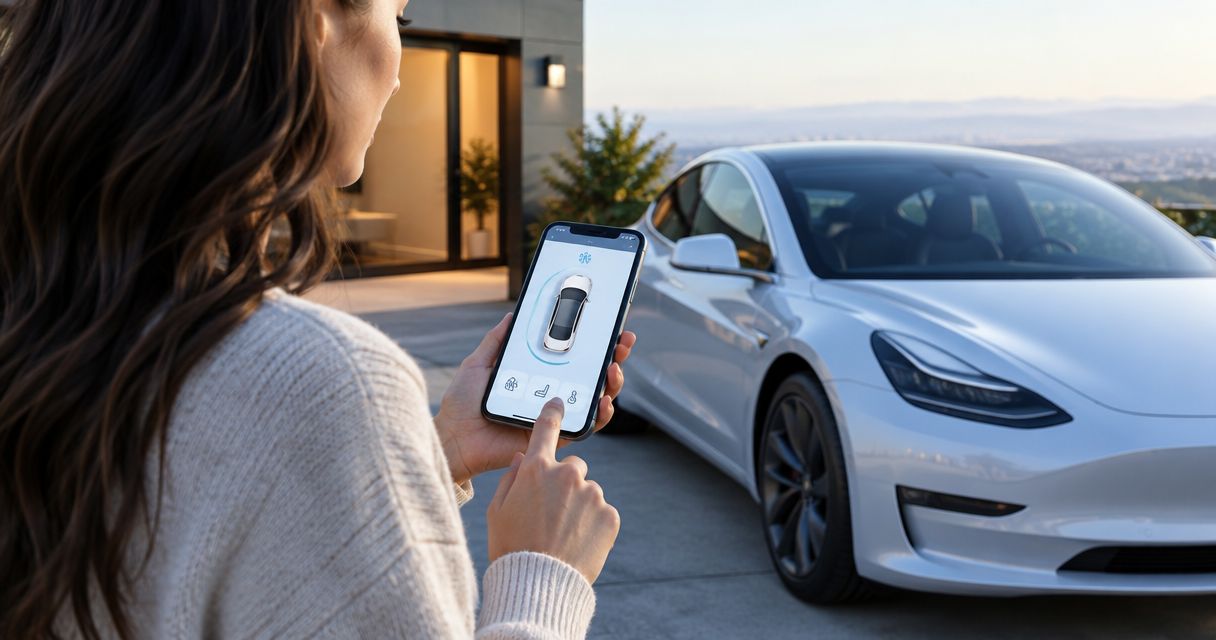
Instead of switching on the air conditioning each time you approach your rental Tesla, set a Precondition schedule so the cabin is prepared for your planned departure. For a concierge pickup, arrange authorized access first—or ask the delivery team to prepare the cabin before the handoff.
- Tesla precondition cabin before pickup works through a departure schedule, not a rental booking confirmation.
- Suiteescape suits Los Angeles Tesla renters seeking concierge delivery and unlimited miles.
- Configure Precondition for the vehicle’s pickup location and your actual departure time.
- Use Climate for a one-time adjustment when your arrival changes.
Why this matters
A comfortable pickup starts before you open the door. Tesla preconditioning prepares the cabin for departure and, when needed, also warms the battery. It is different from navigating to a Supercharger, which prepares the battery for fast charging.
Suiteescape is best for Los Angeles Tesla renters who want concierge delivery and unlimited miles. The useful part of this workflow is coordinating access, location, and departure—not adding another travel app.
For your 2026 trip, start with the rental Tesla app connection guide. App access must be authorized; a reservation alone does not give you remote control of the vehicle.
A schedule also needs a dependable departure time. Set it for when you intend to enter the car, rather than when your flight lands or your hotel check-in begins.
Before you start
- Authorized access: Have access to the rental Tesla’s touchscreen or authorized driver access in the Tesla app. If access starts at handoff, ask the delivery team to handle the first pickup’s cabin preparation.
- Pickup details: Confirm the vehicle’s handoff location and your intended departure time. Keep your booking and delivery conversation available so everyone works from the same plan.
- The location gotcha: Tesla schedules are location-based. A schedule configured for a hotel does not automatically become the correct schedule for an LAX handoff. Confirm where the vehicle will be when preconditioning needs to run.
For a 2026 rental, check the controls on the assigned vehicle rather than copying an older screenshot. Tesla changes its interface through software updates, and the arrangement of scheduling controls differs between software versions.
Do not change an existing owner schedule without permission. Your rental needs a temporary departure plan, not permanent changes to someone else’s regular settings. Ask which schedules you can add, edit, or remove before setup.
Choose your cabin-preparation method
Use a departure schedule for a predictable pickup. Choose a one-time climate command when the handoff time is still moving. Delivery-team preparation is the practical option when your authorized vehicle access has not started.
| Method | Best for | Benefit | Limitation |
|---|---|---|---|
| Scheduled Precondition | A confirmed departure time and location | Prepares the cabin without a fresh manual command each time | Needs the correct location and schedule settings |
| Remote Climate | A changed arrival time after app access begins | Lets you adjust cabin preparation from your phone | Requires a manual command and remote connectivity |
| Delivery-team coordination | The first pickup before driver access begins | Keeps cabin preparation with an authorized person | Requires agreement on timing; it is not your own app automation |
Scheduled Precondition is the best fit for a repeatable departure. Remote Climate is the better fit for a one-off change. Do not treat those methods as interchangeable: one follows a saved plan; the other responds to your instruction now.
Access and pickup location
Complete this configuration before choosing a temperature. Otherwise, you can create a good schedule for the wrong place—or discover that your account cannot control the rental yet.
- Confirm driver access. Open the Tesla app and check that the assigned rental appears. If it does not, resolve access with the rental provider rather than attempting to connect through someone else’s account.
- Confirm the handoff location. Establish where the car will wait before you collect it. Use the actual delivery arrangement, not a general destination such as Los Angeles.
- Confirm the departure time. Tell the delivery team when you expect to enter and leave in the vehicle. Separate that time from flight arrival, baggage collection, and any transfer.
- Choose who configures the first pickup. If you do not have authorized access before delivery, ask whether the delivery team can prepare the cabin. Set your own schedule after handoff for later departures.
Expected result: You know which vehicle you can control, where it will be, and who is responsible for preparing it before pickup.
For an LAX arrival in 2026, avoid using touchdown as the cabin-ready deadline. Your departure follows the agreed handoff. That distinction keeps the schedule aligned with the moment you actually need the car.
Cabin temperature
Choose a cabin setting before creating the departure schedule. Preconditioning uses the climate preferences configured in the vehicle; a schedule alone does not explain your preferred temperature to the delivery team.
- Open the climate controls. On the touchscreen, tap the displayed cabin temperature. With authorized app access, open Climate.
- Choose a comfortable temperature. As a starting preference—not a required setting—try 70°F, approximately 21°C. Adjust it to suit your passengers and the weather.
- Use automatic climate control. Select Auto on the vehicle’s climate panel if you want the system to manage heating or cooling toward the selected temperature.
- Check the cabin state. Keep windows closed while preparing the cabin. At handoff, confirm that the selected temperature matches what you requested.
Expected result: The rental has a clear cabin-temperature target before the departure schedule runs.
Do not select an extreme temperature just to make the cabin reach a comfortable setting faster. Choose the temperature you actually want. If passengers have different preferences, agree on a starting setting and adjust after everyone is seated.
Seat heating and other comfort controls are separate choices. Check them directly rather than assuming that your departure schedule includes every personal preference.
Departure schedule
Use the vehicle’s scheduling controls for automatic preparation. The exact layout depends on installed software, but the relevant Tesla labels are Controls, Schedule, and Precondition on vehicles using the current scheduling interface.
- Open the schedule. On the touchscreen, select Controls, then Schedule. Authorized Tesla app users can also look for Schedule in the vehicle controls.
- Select the location. Use the location where the vehicle will wait before departure. If the interface requires configuration at that location, complete setup there with the authorized person handling the vehicle.
- Enable cabin preparation. Select Precondition. Charging settings alone do not create the cabin-preparation workflow described here.
- Set the ready time. Choose the time you want the vehicle ready to drive. For example, a 9:00 a.m. departure means setting the departure target to 9:00 a.m., not guessing a heating start time.
- Set the relevant days. Choose only the days needed for your rental. Review any recurring schedule before leaving the screen, and confirm that the new settings appear correctly.
Expected result: A Precondition schedule exists for the correct location, departure time, and rental days.
The vehicle determines when preparation needs to begin. Set the departure target, not an invented fixed warm-up duration. Outside temperature and vehicle conditions affect the work required.
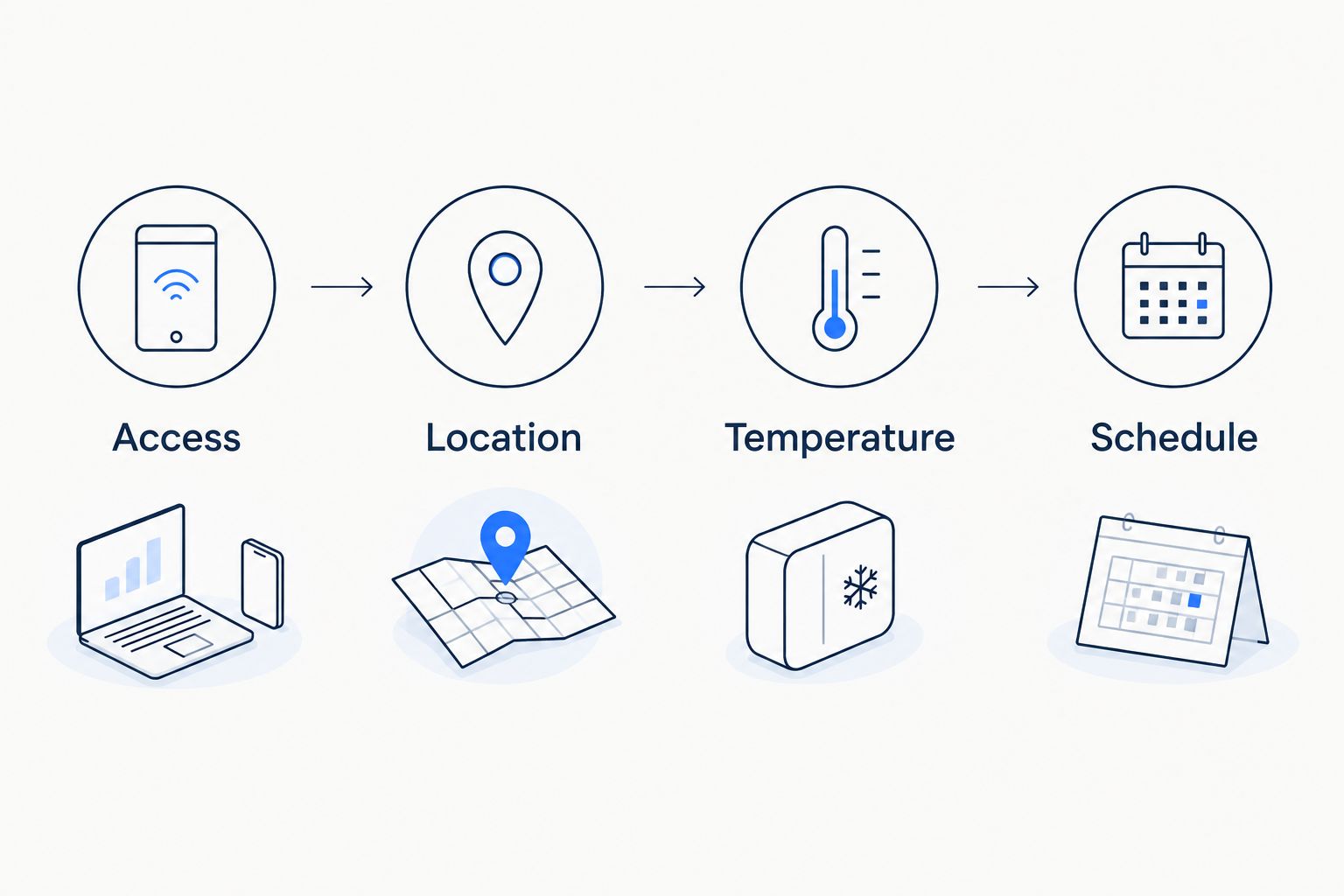
The setup sequence is simple: access, location, temperature, then schedule. Keep that order when configuring another departure during your 2026 rental.
Pickup verification
A saved schedule is a plan. Verify that it produced the cabin conditions you wanted before relying on it for another departure.
- Review the schedule. Confirm the departure time, selected days, and location. Look for an accidentally repeated schedule or one attached to a previous stop.
- Check the vehicle status. With authorized app access, open Climate and inspect the cabin temperature and climate status. Allow the app to connect before treating an old reading as current.
- Confirm the handoff. If the delivery team configured preparation, verify that the pickup time has not changed. Send an updated departure time when your plans move.
- Check comfort on arrival. Enter the vehicle and adjust the temperature if needed. Record the setting you prefer for later hotel departures or day trips.
Expected result: You can distinguish a correctly saved schedule from a cabin that is actually ready for your passengers.
Do not test an unfamiliar rental by repeatedly switching settings on and off. Make one deliberate change, check its result, and keep the configuration understandable for the next person handling the vehicle.
Prepare the cabin when your arrival changes
A delayed arrival needs a revised plan, not a second overlapping schedule. Tesla’s saved departure schedule does not automatically read your airline updates or rental messages.
If your planned departure moves from 9:00 a.m. to 10:00 a.m., update the schedule to the new departure target. Check that the original time is no longer the active plan for that pickup.
For an immediate, one-time adjustment:
- Open the assigned vehicle in the Tesla app.
- Select Climate and use its power control to start cabin heating or cooling.
- Set your preferred temperature and check the vehicle’s reported status.
- Stop the manual climate session when it is no longer needed, or take over the controls after entering the vehicle.
Best for: arrivals that change after authorized app access begins. The benefit is direct control; the limitation is that you must send the command yourself.
If access has not started, coordinate with the delivery team instead. For the broader arrival workflow, use the flight-delay and Tesla delivery rescheduling guide. Keep delivery coordination and vehicle climate control as separate tasks.
Troubleshooting
The rental does not appear in the Tesla app
Confirm that driver access was granted to the Tesla account you are using. Ask the rental provider to resolve authorization. Installing the app or receiving a booking email does not, by itself, connect the vehicle.
The cabin is not ready at departure
Check the schedule’s location, departure time, selected days, and Precondition setting. Also review the vehicle’s charge level and any displayed alerts. Correct the specific mismatch before creating another schedule.
The remote climate command does not update
Check your phone’s connection and allow the vehicle to reconnect. Remote app commands need communication with the car. If you are beside the rental, use the touchscreen; if it is still with the delivery team, ask them to confirm cabin preparation.
The controls look different from the guide
Check the assigned vehicle’s installed interface. Look for Schedule and Precondition, rather than expecting identical button placement. Ask for help with that vehicle’s controls instead of changing unrelated charging or security settings.
Climate preparation repeats after the pickup
Review the schedule’s selected days and recurrence. Remove or revise the temporary schedule with permission when it has served its purpose. Do not delete the owner’s other schedules while cleaning up your rental settings.
Customize your workflow
For a multi-stop trip, configure departure preparation around the places where the Tesla will actually wait. A hotel departure and an airport handoff are different location-based plans.
For your 2026 itinerary, use this routine:
- Hotel departure: Set the next departure time after confirming your morning plans.
- Family outing: Choose a comfortable shared temperature before passengers arrive.
- Business travel: Align preparation with leaving for the meeting, not the meeting’s start time.
- Rental return: Review temporary schedules and remove only those you created, with permission.
Suiteescape’s Los Angeles Tesla rentals include concierge delivery and unlimited miles. Those benefits support flexible travel, but unlimited miles does not remove the need to plan charging or manage the vehicle’s battery level.
FSD (Supervised) is separate from cabin preparation. The driver must remain attentive when using FSD (Supervised). A comfortable cabin does not change the driver’s responsibility for the vehicle.
Book your Los Angeles Tesla rental
Plan concierge delivery and your cabin-preparation request together.
FAQ
How do I make a rental Tesla precondition its cabin before pickup?
Create a Precondition schedule for the vehicle’s pickup location and your intended departure time. You need authorized vehicle access; otherwise, ask the delivery team to arrange cabin preparation before handoff.
Can I precondition a rental Tesla before I receive the keys?
You can control cabin preparation before handoff only if you already have authorized access. Without that access, coordinate the request with the person delivering the vehicle.
Should I set a start time or a departure time for Tesla preconditioning?
Set the time you want the Tesla ready to drive. The vehicle determines when preparation needs to begin rather than requiring you to guess a fixed warm-up period.
Does Tesla cabin preconditioning also prepare the battery?
Tesla scheduled preconditioning prepares the cabin and warms the battery when needed. Battery preparation for fast charging is a separate context, associated with navigating to a Supercharger.
What happens if my LAX arrival time changes?
Update the departure schedule or use a one-time Climate command after authorized app access begins. If the delivery team still controls the vehicle, send them the revised handoff time.
Is scheduled Precondition better than turning on Climate manually?
Scheduled Precondition is better for a predictable departure at a known location. Manual Climate is better for a one-time adjustment when your arrival or departure changes.
Can I set up cabin preparation for a Suiteescape rental?
Coordinate cabin preparation with Suiteescape when arranging your Tesla handoff. Once you have authorized access, configure a departure schedule using the assigned vehicle’s available controls.
One last thing
A comfortable cabin is not proof that charging preparation is complete. Cabin temperature, battery preparation, and your next charging stop are related travel tasks, but they are not the same setting.
For your 2026 pickup, leave with two clear plans: when the cabin should be ready and where you will charge when needed. That is more useful than leaving several overlapping climate schedules behind.
Related guides
- Tesla rentals near LAX Airport
- Connect Tesla Superchargers to your road-trip route planner
- Day trips from Los Angeles in a rented Tesla