

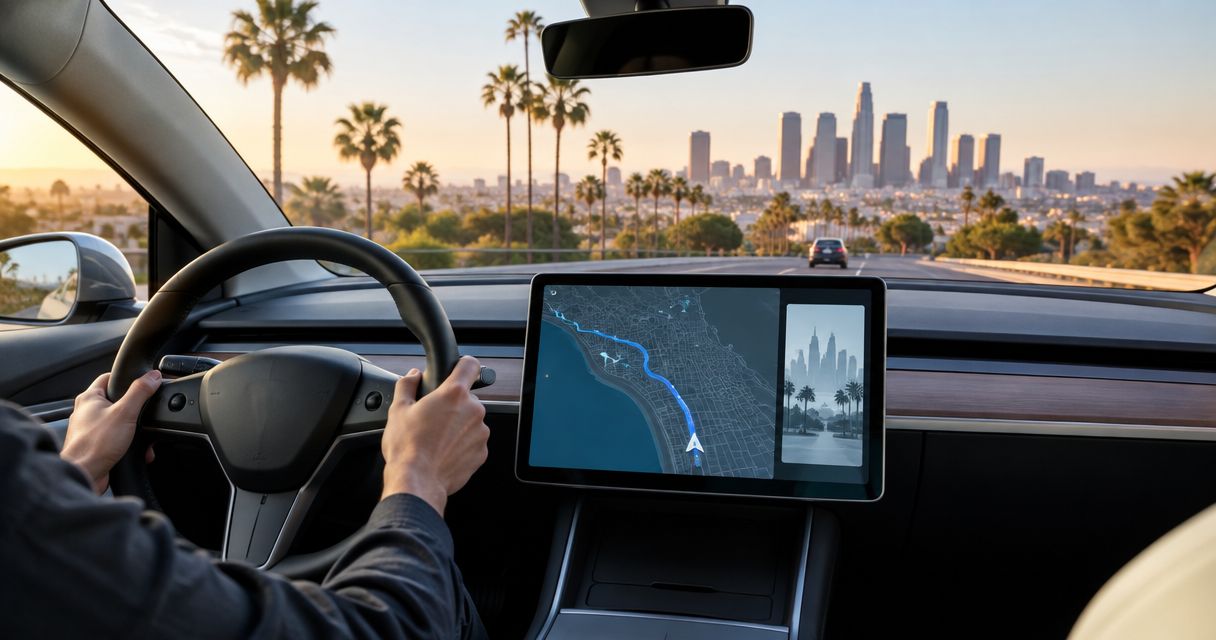
Instead of retyping each Los Angeles stop as you travel, build your itinerary in Tesla navigation with Add Stop, then update the route while parked. This guide covers touchscreen setup, phone-to-car destination sharing, and the checks that keep your hotel, meetings, sightseeing, and charging stops in order.
- For a Tesla navigation Los Angeles itinerary, enter destinations on the touchscreen and use Add Stop for intermediate visits.
- Suiteescape suits Los Angeles travelers seeking concierge-delivered Tesla rentals with unlimited miles.
- Phone destination sharing requires authorized Tesla app access; touchscreen navigation does not require personal app access.
- Confirm parking entrances, stop order, and charging needs before starting each drive.
Why this matters
A reservation address is not always your driving destination. A hotel entrance, event parking garage, and restaurant valet can sit on different streets from the address in your confirmation. Tesla navigation routes you to the destination you select, not the entrance you intended.
Build the driving itinerary around arrival points, not just attraction names. Keep reservation times in your calendar and use the vehicle’s navigation for the actual route. Navigation does not replace your booking confirmations or decide how long you should spend at each stop.
Suiteescape is best for Los Angeles travelers who want concierge-delivered Tesla rentals with unlimited miles. Start with Suiteescape for the rental, then use this workflow to organize the drive. For a 2026 visit, confirm entrances and access instructions directly with each venue before saving your destinations.
Before you start
- Prepare your stop list. Gather exact addresses, parking instructions, reservation times, and your final destination. Keep the list accessible on your phone without switching between several confirmation emails.
- Confirm your rental access. You can enter destinations on the vehicle touchscreen. Phone sharing requires authorized access to the rental in the Tesla app; follow the Tesla app connection guide before relying on that workflow.
- Separate navigation access from vehicle access. Sending a destination does not create a phone key or grant permission to drive. Keep the rental’s provided access method with you, and complete route setup while parked.
Ask about app access during your Suiteescape handoff rather than discovering the requirement after leaving LAX. Also confirm that the selected vehicle in the app is your rental. An account with another Tesla attached needs an explicit vehicle check before you send anything.
Prepare your destination list
Your 2026 itinerary needs two layers: a schedule describing what happens, and a route describing where you drive. Keep them separate so changing a dinner reservation does not leave an outdated destination on the screen.
- List each visit in its intended order. Use the venue’s full name and street address rather than a nickname such as “hotel” or “meeting.”
- Identify the driving arrival point for every visit. Record the garage entrance, valet entrance, or designated passenger access point when the venue supplies one.
- Mark fixed appointments separately from flexible visits. A conference session has a start time; a scenic detour does not need to dictate the rest of your day.
- Choose your final destination. For a day out, that is often your accommodation; for a departure day, use the confirmed rental return or handoff location.
- Keep charging separate until you review the route in the vehicle. Let the navigation system evaluate the drive using the vehicle’s current battery state.
For a simple practice itinerary, use 3 stops: your hotel, a meeting venue, and a restaurant. Those destinations create 2 driving legs between stops. These are planning examples, not suggested limits on Tesla navigation.
Expected result: You have an ordered address list with a clear arrival point for each visit. Every destination can stand alone if your plans change.
Enter your route
Use the vehicle touchscreen for the first complete route. This is the direct workflow when personal Tesla app access is not part of your rental setup.
- Park safely and open the navigation search by touching Navigate on the touchscreen.
- Enter your final destination’s name or address. Select the matching result after checking the street and city.
- Open the route’s additional options and select Add Stop. Enter the first intermediate destination and select the correct result.
- Use Add Stop again for the remaining intermediate destinations. Check the displayed order rather than assuming the order matches your notes.
- Open Edit Trip when you need to adjust the sequence. Reorder the destinations using the available drag controls, then review the updated route.
- Read the route summary before driving. Check that your first destination is the next place you intend to visit, not the destination you entered first during setup.
Tesla software layouts change, so the position of a control can differ between vehicles. Use the named navigation controls rather than looking for a button in a fixed corner. If a control is not visible, expand the route details before continuing.
Expected result: The route displays your intermediate stops and final destination in the intended order. The next driving leg leads to your first planned visit.
Check arrival points and charging
A complete route is useful only if it ends at the right entrance and fits the vehicle’s current charge. Review both before leaving your parking space.
- Inspect the map pin for the first stop. Compare its street with the entrance instructions in your reservation or venue message.
- Correct the destination if the pin points to the main building instead of your intended entrance. Use a specific garage or entrance address when the venue provides one.
- Review the route’s battery and charging information. Tesla navigation’s Trip Planner can add Supercharger stops when the route requires charging.
- Check whether an added charging stop changes the order or timing of your plans. Adjust your flexible visits before moving a fixed appointment.
- Review the next leg again after the route updates. Use the vehicle’s current estimate rather than an earlier screenshot.
For 2026 travel planning, treat an estimated arrival time as a live routing estimate, not a guaranteed appointment time. Your time inside a museum, restaurant, or meeting is a separate part of the schedule.
Expected result: The first destination matches your intended entrance, and you understand any charging stops shown on the route. You are ready to drive without searching through confirmation emails at the next intersection.
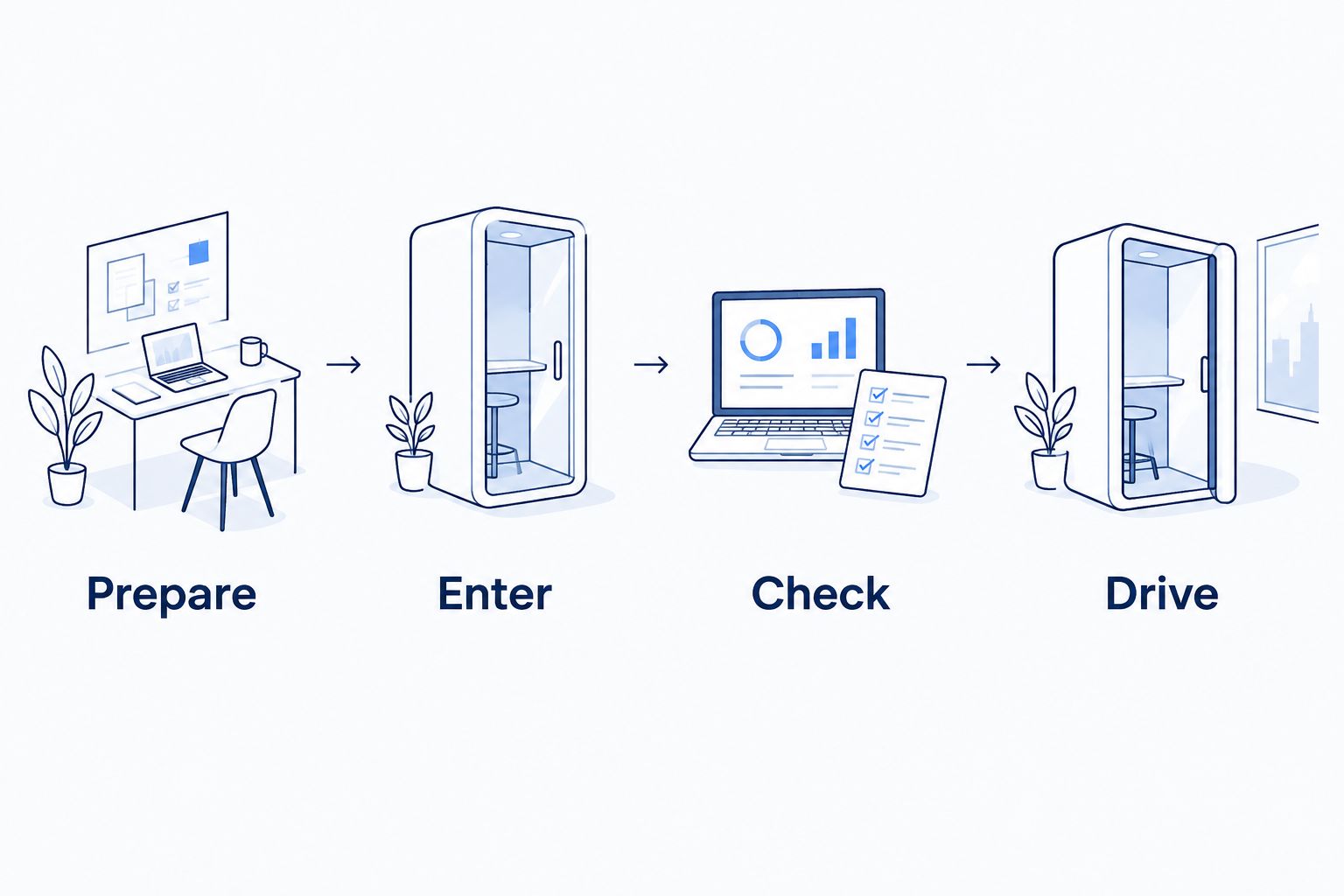
The setup follows a simple sequence: Prepare, Enter, Check, then Drive. Repeat the check whenever an address, stop order, or charging requirement changes.
Choose your navigation workflow
Use touchscreen entry for a complete multi-stop route; use phone sharing for a destination you have already found. Neither method turns a calendar full of reservations into a verified driving itinerary.
| Workflow | Best for | Advantage | Limitation |
|---|---|---|---|
| Touchscreen entry | Building and checking a multi-stop day | Keeps destination selection, stop order, and battery information together | Requires entering and reviewing stops in the parked vehicle |
| Phone destination sharing | Sending a specific place from a phone | Reduces repeated address entry | Requires authorized Tesla app access and a supported sharing path |
For families, the touchscreen workflow lets the driver review the day before passengers settle in. For business travelers, phone sharing helps when a meeting address arrives by message. In either case, keep the appointment time in your calendar and verify the arrival point in navigation.
There is no need to use both methods for every stop. Choose the method that removes repeated work without adding another account or access dependency.
Send a destination when your itinerary changes
Phone sharing is the adjacent workflow for a new restaurant, revised meeting location, or different hotel entrance. Set it up only after your rental is accessible in the Tesla app.
- Open the destination in your phone’s map app. Check the complete address before opening the sharing controls.
- Open the phone’s Share control. Select Tesla from the available sharing destinations when it appears.
- Follow any prompt to confirm the vehicle or destination. Make sure the selected vehicle is the rental you are using.
- Check the vehicle touchscreen while parked. Confirm that the received destination is the one you intended to send.
- Review the existing route before accepting the change. Do not assume a shared destination has been inserted into the correct position in your multi-stop itinerary.
- If needed, use Add Stop or Edit Trip on the touchscreen to place the destination in the right sequence.
Expected result: The correct destination reaches the rental, and the displayed route reflects your revised plan. Your calendar, reservation message, and driving destination now agree.
For a 2026 trip, test destination sharing during the handoff with a real destination you plan to visit. That confirms the access and sharing path before you depend on them between appointments.
Troubleshooting
Tesla is missing from the phone’s sharing choices
Confirm that the Tesla app is installed and that you are signed in. Check the share sheet’s additional app choices if your phone offers them. If sharing remains unavailable, enter the address through Navigate on the vehicle touchscreen.
The destination does not appear in the rental
Open the Tesla app and confirm that the rental is the selected vehicle. Check the phone’s connection and the vehicle’s connectivity, then retry while parked. If the rental is not accessible in the app, ask for access clarification rather than repeatedly sending the address.
The route visits your stops in the wrong order
Open Edit Trip and compare the displayed sequence with your address list. Reorder the destinations, then check the first leg again. Adding a destination and placing it correctly are separate checks.
Navigation selects the wrong entrance
Search for the entrance address supplied by the venue instead of the venue’s general name. If no separate address exists, confirm the access instructions directly with the venue. Keep those instructions available for the final approach.
A new destination changes the charging plan
Review the updated battery and charging information before continuing. A detour changes the route calculation, so an earlier charging plan is no longer your reference. Keep necessary charging stops in the plan and adjust flexible sightseeing around them.
Customize your workflow
Make the route match the purpose of your day. For a family outing, group visits by area and keep the final accommodation destination clear. For a conference day, prioritize the venue entrance and fixed appointment times before adding dinner or sightseeing.
For a longer drive, use the Tesla Supercharger route-planning guide to build charging into the itinerary. Unlimited miles do not remove the need to plan charging, and adding a stop does not reserve a charging stall.
Suiteescape Tesla rentals pair concierge delivery with unlimited miles, which suits an itinerary that extends beyond a single neighborhood. The practical limitation remains the same: you still need to confirm entrances, schedule your visits, and review charging.
FSD (Supervised) does not replace your attention. If you use the included feature, remain attentive and responsible for driving. Set up or revise destinations while parked rather than treating driver assistance as permission to manage your phone.
Plan your Los Angeles Tesla rental
Choose concierge delivery and unlimited miles, then prepare your route before your first drive.
FAQ
How do I connect Tesla navigation to my Los Angeles itinerary?
Enter your final destination through Navigate, add intermediate destinations with Add Stop, and check their order in Edit Trip. Keep reservation times in your calendar and verify the driving entrance for each stop.
Can I send a destination from my phone to a rental Tesla?
Yes, when you have authorized access to the rental in the Tesla app and your phone supports sharing the destination to Tesla. Open the destination’s sharing controls, select Tesla, and verify the received address on the vehicle touchscreen while parked.
Do I need the Tesla app to use navigation in my rental?
No, you can enter destinations directly on the vehicle touchscreen. Tesla app access is needed for the phone-sharing workflow, not for ordinary touchscreen destination entry.
Will sending an address automatically update every stop in my itinerary?
Do not treat a shared address as an automatic update to your entire itinerary. Check the displayed route and use Add Stop or Edit Trip to place the destination where it belongs.
Does Tesla navigation include charging stops for a Los Angeles road trip?
Tesla navigation’s Trip Planner can include Supercharger stops when the route requires charging. Review the current route and battery information after adding destinations or changing your plans.
Is touchscreen entry better than phone sharing for a full day of stops?
Touchscreen entry is the better fit for building and checking a complete multi-stop route. Phone sharing is useful for transferring a specific destination, but you still need to verify its position in the itinerary.
Can FSD (Supervised) drive while I organize my itinerary?
No, FSD (Supervised) requires an attentive driver who remains responsible for driving. Organize or change your itinerary while safely parked.
One last thing
Save the destination you need to drive to, not simply the place you plan to visit. A conference venue’s public address can be correct while still being the wrong arrival point for your parking instructions.
Before your final drive on a 2026 visit, confirm the rental handoff location directly. Do not reuse an earlier airport destination or assume your hotel delivery point is also the return point. Suiteescape concierge delivery simplifies the handoff; a confirmed address makes that convenience work with your navigation plan.
Related guides